
Packaging guide
QR Code for Product Packaging
A QR code on product packaging gives the person holding your label, carton or box a next step: read the product story, follow instructions or find a refill. Choose that destination first, then give the code a clear place in the design.
Qurbo makes branded QR codes from your logo, illustration or product artwork. Here’s how to choose the link, place the QR and prepare the finished packaging for print.
Make the scan part of the pack
Carry the pack’s emblem and colors into the QR, then give the scan a clear invitation.
- The artwork
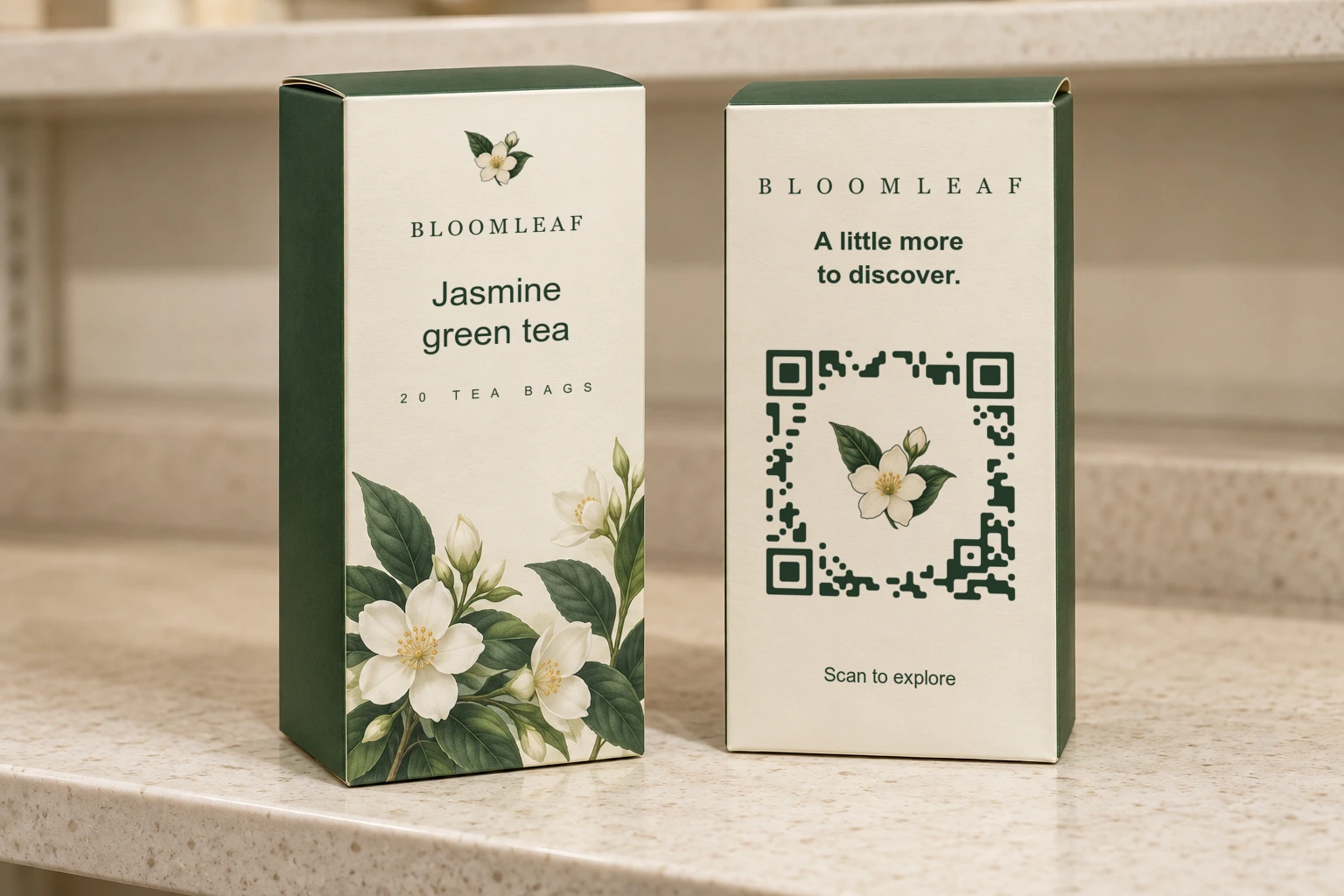
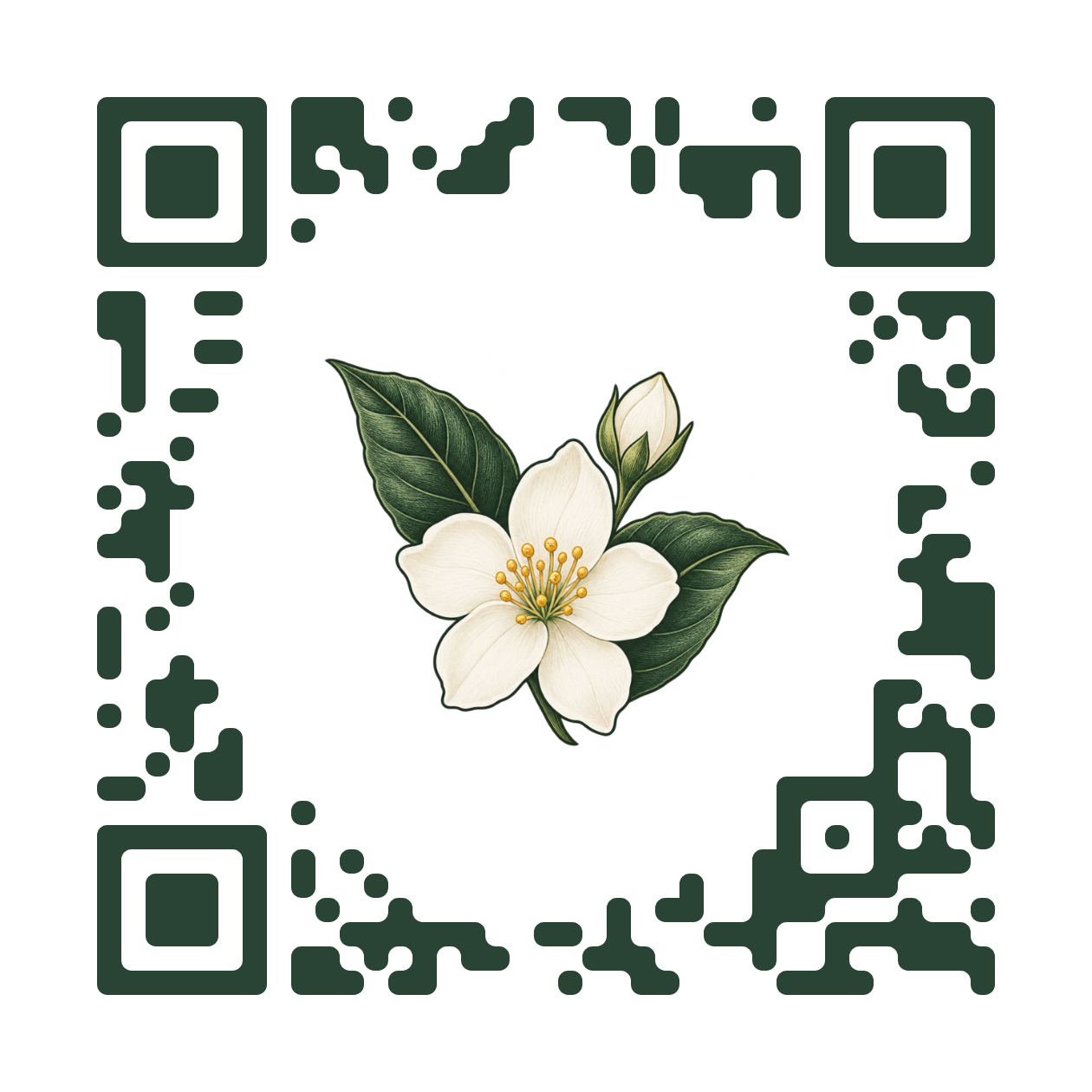
- Bloomleaf’s jasmine emblem appears on the front of the carton and inside the QR. The green modules match the pack’s palette.
- The invitation
- “Scan to explore” gives the reader a clear action in a short line below the QR.
- The placement
- The full QR sits on the flat back panel, with room between its clear border and the surrounding text.
Give the scan a useful next step
Link to the page that helps someone with this product. Match the invitation on the pack to what they will find there.
Tell the product story
Open the product’s sourcing, ingredients or making process.
“Read the story”Help them use it
Open instructions, setup steps, care advice or a recipe for this product.
“View the instructions”Make the next purchase easy
Open the matching refill, replacement part or reorder page.
“Shop refills”Choose a place the phone can see
Keep it on one panel
Choose a flat, accessible part of the label or box. Keep the code away from folds, seams and opening tabs, so the whole QR is visible without opening or damaging the pack.
Leave a clear border
DENSO WAVE specifies a margin four QR modules wide on every side. A module is one small unit in the QR grid. Keep text and patterns outside that margin.
Allow room for the printed code
Choose the size with your printer, using the final material and the distance someone will scan from. DENSO WAVE’s module-size guidance explains how print resolution and scanner limits affect the result.
Check the applied label
On a bottle or curved container, inspect the QR after the label is applied. Try the actual shape, finish and lighting; keep the code clear of wrinkles and glare.
How to create a packaging QR
- 01
Choose the artwork
Upload your logo, illustration or product visual. Use an asset that remains recognizable at the size you plan to print.
- 02
Choose the destination
Use the exact product, guide or campaign page. Open it on a phone to check the experience after the scan.
- 03
Generate and choose a result
Look for recognizable artwork, space around it and a complete QR. Here, the flower and leaves stay clear of the surrounding modules.
- 04
Publish and place it
Follow Qurbo’s publishing steps, download the QR and add it to your label or pack layout. Keep its proportions and clear border intact.
Scan the finished packaging sample
Use a sample at its final size, on the material and finish you plan to print.
- Check the complete layout. Keep the QR, its clear border and the scan invitation visible. Avoid stretching, cropping or painting over the code.
- Try the real conditions. Scan the applied label or assembled box with more than one phone, at the expected distance and in the expected lighting.
- Follow the link. Confirm the right page opens on a phone and that it matches the invitation on the pack.
FAQ
Can I use my existing packaging artwork?
Yes. Upload your logo, illustration or product visual, then choose a QR result that keeps the artwork recognizable.
Can I change the link after the packaging is printed?
Yes. Qurbo’s managed link lets the printed QR stay the same when the destination changes. Paid plans allow destination editing anytime. On Free, you can edit the destination for one day after publishing. It then locks, and the QR continues opening the saved destination.
Can I use one QR across several products?
Yes, when each package should open the same page. Use separate QRs when products need different destinations or when you want to compare their scan activity.
Can I put the QR on a curved bottle?
Choose a smooth area where the whole QR and its clear border fit. Scan a sample after applying the label to the bottle, using its final shape and finish.
Can I see which packaging QRs get scanned?
Yes. Qurbo shows scan activity for your QR codes. Separate codes for different products or campaigns let you compare activity across those placements.
Should I choose a static or managed QR?
Use a static QR for a fixed link. Choose a managed QR when you want destination editing or scan activity. Qurbo uses managed links.
For a plain QR that opens a fixed link, use the Free QR Code Generator. View plans for more branded QRs and destination editing anytime.
Make a QR for your next label or box
Choose your artwork and the page you want customers to open. Create your branded QR and place it in the finished layout. Your first QR publication is free.